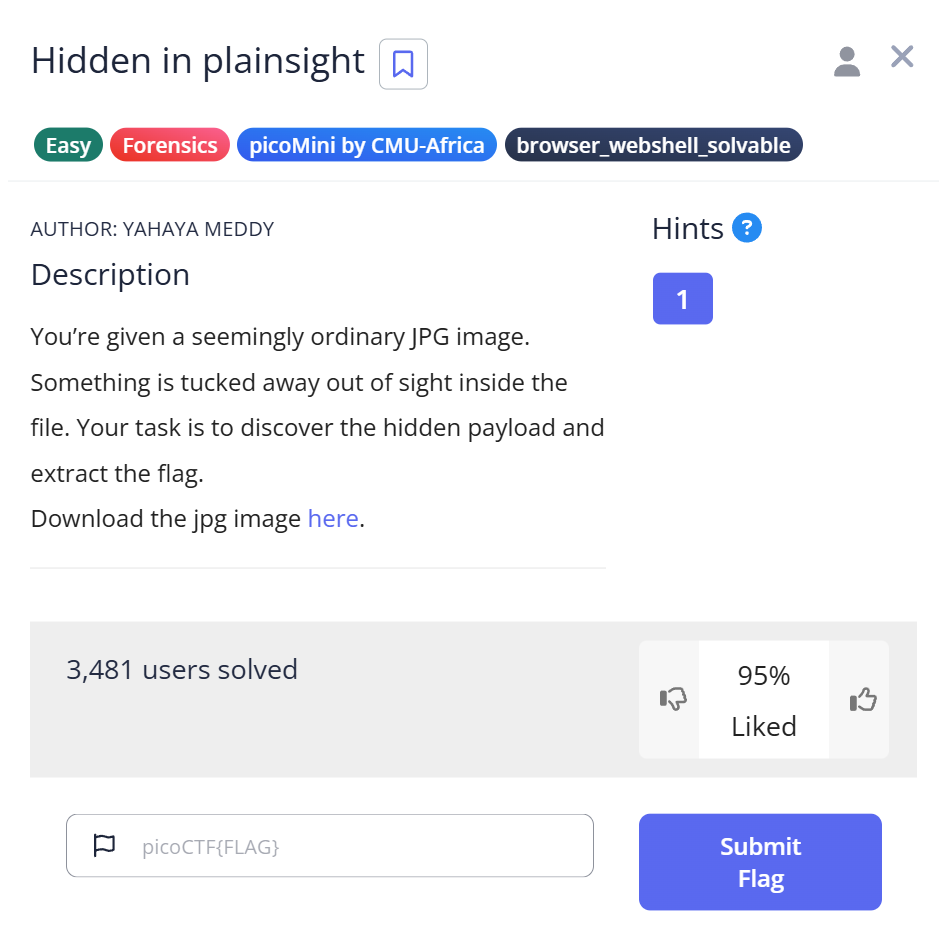
The first thing I did with img.jpg in picoCTF Hidden in Plainsight was open it. Just looked at it. A perfectly ordinary 640×640 image — no visible text, no obvious anomalies. I spent a few minutes staring before admitting visual inspection wasn’t going to help. This is a steganography challenge where the passphrase was technically visible from the very first command — I just wasn’t reading carefully enough.
Challenge Overview
The challenge provides a single file: img.jpg. No hints beyond the title “Hidden in Plainsight.” The name suggests the hidden data is somewhere obvious — but obvious to whom?
My first assumption: steganography in the pixel data. My plan: run steghide extract with a blank passphrase, since a lot of Easy-tier stego problems don’t bother with passwords.
$ steghide extract -sf img.jpg
Enter passphrase:
steghide: could not extract any data with that passphrase!
No luck. I tried “password,” “picoctf,” “flag” — all the obvious guesses. Nothing. Then I ran binwalk, expecting to find an embedded file signature.
$ binwalk img.jpg

DECIMAL       HEXADECIMAL     DESCRIPTION
--------------------------------------------------------------------------------
0             0x0             JPEG image data, JFIF standard 1.01
Nothing useful. Just the JPEG header. I was about 15 minutes in and stuck.
Step 1: Reading the file Command Output Properly
I almost didn’t run file — I assumed I already knew what the file was. But out of habit, I ran it anyway:
$ file img.jpg
img.jpg: JPEG image data, JFIF standard 1.01, aspect ratio, density 1x1, segment length 16, comment: "c3RlZ2hpZGU6Y0VGNmVuZHZjbVE9", baseline, precision 8, 640x640, components 3
I nearly scrolled past it. The output is long and dense, and I was skimming. Then the word comment caught my eye: "c3RlZ2hpZGU6Y0VGNmVuZHZjbVE9".
JPEG files have a comment field in their header — a metadata field that most people never think about. That string looked like base64. The challenge title suddenly made sense: hidden in plain sight, inside the file metadata.
Step 2: Decoding the Comment — Twice
I decoded the comment field:
import base64
cipher = "c3RlZ2hpZGU6Y0VGNmVuZHZjbVE9"
plain = base64.b64decode(cipher).decode()
print(plain)
$ python3 decode.py
steghide:cEF6endvcmQ=
The output split at a colon: steghide on the left, and another base64 string on the right. The challenge was literally naming the tool and handing me an encoded passphrase. I decoded the right side:
import base64
cipher = "cEF6endvcmQ="
plain = base64.b64decode(cipher).decode()
print(plain)
$ python3 decode.py
pAzzword
Double base64. The passphrase was pAzzword — deliberately written to look like “password” but different enough to not be guessable. This is why the brute-force approach earlier failed.
Step 3: Confirming the Embedded Data
Before extracting, I ran steghide info to confirm something was actually there — I’ve wasted time extracting from files with no embedded data before:
$ steghide info img.jpg
"img.jpg":
  format: jpeg
  capacity: 4.0 KB
Try to get information about embedded data ? (y/n) y
Enter passphrase:
  embedded file "flag.txt":
    size: 34.0 Byte
    encrypted: rijndael-128, cbc
    compressed: yes
There it was — flag.txt, 34 bytes, AES-128 encrypted. The passphrase had unlocked the metadata. Now extraction:
$ steghide extract -sf img.jpg
Enter passphrase:
wrote extracted data to "flag.txt".
Capture the Flag
picoCTF{h1dd3n_1n_1m4g3_67479645}
The flag format confirmed everything. The “image” in h1dd3n_1n_1m4g3 was the hint the problem had been giving all along.
Full Trial Process
| Step | Action | Command | Result | Why it failed / succeeded |
|---|---|---|---|---|
| 1 | Visual inspection | — | Nothing visible | Steghide hides data in DCT coefficients, invisible to the eye |
| 2 | Blank passphrase attempt | steghide extract -sf img.jpg | Failed | Passphrase was not blank |
| 3 | Signature scan | binwalk img.jpg | Only JPEG header | Steghide doesn’t append files — it modifies DCT coefficients |
| 4 | File metadata check | file img.jpg | Base64 string in comment field | The clue was in the JPEG comment all along |
| 5 | First base64 decode | Python script | steghide:cEF6endvcmQ= | Revealed tool name and encoded passphrase |
| 6 | Second base64 decode | Python script | pAzzword | Double-encoded to prevent simple guessing |
| 7 | Confirm embedded data | steghide info img.jpg | flag.txt confirmed | Passphrase correct |
| 8 | Extract | steghide extract -sf img.jpg | flag.txt extracted | Success |
Commands Used
file
Reads a file’s magic bytes and metadata to identify its format. For JPEGs, it parses the JFIF header and prints fields including the comment segment. Most people run file just to confirm a file type — but the comment field is worth reading carefully in CTF contexts.
base64 (Python)
Base64 is an encoding scheme that converts binary data into ASCII text using 64 printable characters. It’s recognizable by its character set (A-Z, a-z, 0-9, +, /) and the = padding at the end. In CTF, any string that looks like base64 is worth decoding immediately.
steghide info
Queries a JPEG or WAV file for embedded steganographic data without extracting it. Useful for confirming you have the right passphrase before committing to extraction. If the passphrase is wrong, it returns an error rather than a confirmation — so a successful info response is meaningful.
steghide extract
Extracts embedded data from a carrier file. The -sf flag specifies the stego file. The extracted file is saved to the current directory with its original embedded filename.
Beginner Tips
Read file output completely. The file command produces dense output and it’s easy to skim the important parts. Force yourself to read every field, especially comment, OEM-ID, and any strings that don’t look like standard metadata.
Recognize base64 on sight. Base64 strings end in = or ==, consist of alphanumeric characters plus + and /, and are usually multiples of 4 characters. When you see one in a CTF context, decode it. Then decode the result if it looks encoded again.
Use steghide info before extract. It’s a faster way to test a passphrase without writing a file to disk. Especially useful when you’re testing multiple candidates.
binwalk failing doesn’t mean steghide will fail. These tools detect different things. Binwalk looks for file signatures appended to the carrier. Steghide modifies the carrier’s DCT coefficients. They can both be relevant to the same file, or only one of them.
What You Learn
The biggest lesson from Hidden in Plainsight isn’t about steghide — it’s about where to look for passphrases. The passphrase was never hidden in a difficult place. It was in the file’s own comment field, double-encoded in base64. The challenge was about noticing something that was technically visible from the first command.
In real-world forensics, JPEG comment fields are used by camera firmware, image editors, and — as this challenge demonstrates — can be abused to carry arbitrary data. An analyst who skims file output will miss this. An analyst who reads it will not.
Next time I encounter a steganography challenge with an unknown passphrase, my first move is metadata — file, exiftool, and strings — before trying any extraction tool. The passphrase is usually closer than it looks.
Further Reading
This challenge uses steghide as its extraction tool. For a full breakdown of steghide’s workflow — including when to use it, when to switch to Stegseek, and how it differs from binwalk — see steghide in CTF: Extract Flags.
The metadata discovery technique used here — reading file output carefully — applies to PNG files too. pngcheck in CTF covers how to extract and analyze PNG chunk data using a similar approach.
For a broader overview of forensics tools and when to use each one, the CTF Forensics Tools guide covers the full toolkit from initial file identification through extraction.
Leave a Reply