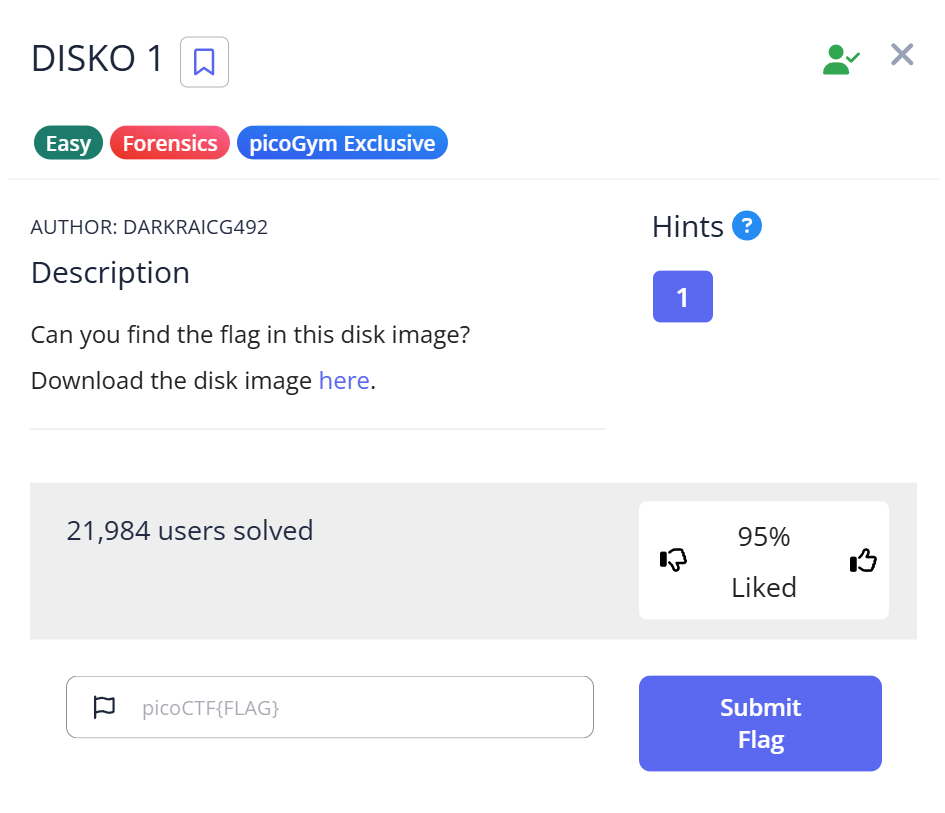
I spent over an hour doing everything wrong on picoCTF DISKO 1 before the flag basically yelled at me. The challenge gives you a compressed FAT32 disk image and asks you to find a hidden flag. My instinct was to mount it, analyze partitions, and dig through the filesystem like a proper forensics investigator. The flag had other ideas. This writeup is mostly about that wasted hour — because the lesson here isn’t the two-line solution, it’s understanding why every other approach fails first.
Challenge Overview
CTF: picoCTF
Challenge name: DISKO 1
Category: Forensics
Difficulty: Easy
Given file: disko-1.dd.gz
The challenge description is sparse — something about a disk image with a hidden flag. No hints about what filesystem, what tool, or where in the image the flag lives. Just a .dd.gz file and go.
I ran file on it first:
$ file disko-1.dd.gz
disko-1.dd.gz: gzip compressed data, was "disko-1.dd", last modified: ..., from Unix
Straightforward — gzip-compressed disk image. I gunzipped it and checked what we had:
$ gunzip disko-1.dd.gz
$ file disko-1.dd
disko-1.dd: DOS/MBR boot record, code offset 0x58+2, OEM-ID "mkfs.fat", sectors/cluster 4,
root entries 512, sectors 20480 (volumes <=32 MB), Media descriptor 0xf8,
sectors/FAT 20, sectors/track 32, heads 64, serial number 0x672d4c8c,
unlabeled, FAT (16 bit)
FAT16 disk image. From here I made what felt like a completely reasonable decision — and then kept making bad decisions for the next hour.
The Rabbit Hole: An Hour of Doing It the Hard Way
Attempt 1: Mounting the image (~15 minutes lost)
My first instinct on any disk image challenge is to mount it and browse the filesystem. It's what forensics investigators do with real disks, and I assumed the flag would be sitting in some file I could just open.
$ mkdir /tmp/disko
$ sudo mount -o loop disko-1.dd /tmp/disko
$ ls -la /tmp/disko/
The filesystem mounted fine, but the directory was completely empty. I tried ls -la, checked for hidden files with ls -A, even ran find /tmp/disko -name "*" — nothing. Just an empty FAT16 volume.
The reason this fails matters: mounting a FAT image only shows you the active filesystem entries. Any file that was deleted, or data written directly to disk sectors without going through the filesystem, is invisible via mount. That's actually the whole point of low-level disk forensics — the filesystem is just one view of the raw data.
Also worth noting: sudo mount modifies the image's access timestamps. On a real forensics case that's contamination. Always work on a copy, or use read-only mount options (-o loop,ro).
Attempt 2: binwalk (~25 minutes lost)
Empty mount, so maybe there's something embedded in the image itself. binwalk is my go-to for that.
$ binwalk disko-1.dd

DECIMAL       HEXADECIMAL     DESCRIPTION
--------------------------------------------------------------------------------
0             0x0             DOS MBR boot record, code offset: 0x58, disk signature: 0x672D4C8C
512           0x200           FAT, 16-bit, sectors/FAT: 20, sector size: 512
Just the FAT boot sector and partition metadata. No JPEG signatures, no zip files, no nested archives. I ran binwalk -e disko-1.dd anyway hoping for something, got only the raw FAT data extracted, nothing useful.
binwalk finds embedded files by their magic byte signatures. If the flag is stored as plain text in a slack space or deleted sector — no magic bytes, nothing to find.
Attempt 3: fdisk and Sleuth Kit (~20 minutes lost)
Maybe there's a hidden partition I'm missing. I checked the partition table:
$ fdisk -l disko-1.dd
Disk disko-1.dd: 10 MiB, 10485760 bytes, 20480 sectors
Units: sectors of 1 * 512 = 512 bytes
Sector size (logical/physical): 512 bytes / 512 bytes
I/O size (minimum/optimal): 512 bytes / 512 bytes
Disklabel type: dos
Disk identifier: 0x672d4c8c

Device       Boot Start   End Sectors  Size Id Type
disko-1.dd1        32  20479   20448  9.9M  4 FAT16 <32M
One partition, FAT16, nothing hidden. I tried The Sleuth Kit anyway — fls to list files including deleted ones, icat to pull raw inode content:
$ fls -r disko-1.dd
(no output)

$ fls -r -d disko-1.dd
(no output)

$ fsstat disko-1.dd
FILE SYSTEM INFORMATION
--------------------------------------------
File System Type: FAT16
...
METADATA INFORMATION
--------------------------------------------
Range: 2 - 2
Root Directory Range: 2 - 2

CONTENT INFORMATION
--------------------------------------------
Sector Size: 512
Cluster Size: 2048
Total Cluster Range: 2 - 2499
...
FAT CONTENTS (in sectors)
--------------------------------------------
(no entries)
The FAT has zero directory entries — no active files, no deleted files, nothing. The filesystem structure is completely empty. If the flag existed as a proper file, fls -d (show deleted) would have caught it. It didn't, because there was never a FAT entry for the flag at all.
At this point I'd been staring at this for about an hour. I stepped back and re-read the challenge name: DISKO 1. And the filename: disko-1.dd. And then I thought about the simplest possible thing you can do with a binary file when you don't know what's in it.
The Solution: What I Should Have Tried First
$ strings disko-1.dd | grep "pico"
picoCTF{1t5_ju5t_4_5tr1n9_be6031da}
That's it. Two seconds. The flag was sitting in raw disk sectors the entire time, untouched by anything I'd done. I read that flag — 1t5_ju5t_4_5tr1n9 — and decoded the leet speak: 1=i, t=t, 5=s, 4=a. "it's just a string." The challenge name, the filename, and the flag text were all pointing at the same two-word answer. I just refused to listen for an hour.
Why strings works here
strings doesn't care about filesystem structure, headers, or file formats. It scans the entire binary file and pulls out any sequence of printable ASCII characters above a minimum length (default: 4 characters). Since the flag was written directly to a disk sector as plain text — not inside a file, just raw bytes on the disk — the filesystem tools couldn't find it, but strings could.
FAT16 divides a disk into fixed-size sectors (512 bytes each) grouped into clusters. The filesystem maintains two structures: a File Allocation Table (the FAT itself) that chains clusters into files, and a root directory that maps filenames to their starting cluster. If you write bytes directly to a data sector using dd without creating a FAT entry, those bytes exist physically on disk but are completely invisible to any filesystem-aware tool. No filename, no cluster chain, no directory entry — just raw bytes at a known offset.
You can confirm exactly where the flag lives using strings -t x to get the hex offset, then verify with xxd:
$ strings -t x disko-1.dd | grep "pico"
 29800 picoCTF{1t5_ju5t_4_5tr1n9_be6031da}

$ xxd -s 0x29800 -l 64 disko-1.dd
00029800: 7069 636f 4354 467b 3174 355f 6a75 3574  picoCTF{1t5_ju5t
00029810: 5f34 5f35 7431 7233 6e39 5f62 6536 3033  _4_5tr1n9_be603
00029820: 3164 617d 0000 0000 0000 0000 0000 0000  1da}............
Offset 0x29800 is sector 211 (0x29800 / 512 = 211), sitting in the data region of the FAT16 partition. No cluster chain, no directory entry — just 36 bytes of ASCII text written directly to disk.
This is also how deleted file recovery works in the real world: after you delete a file, the FAT entry is removed but the actual data sectors aren't zeroed out until they're overwritten. Forensics tools like photorec and commercial software like EnCase recover data exactly this way — by scanning raw sectors, not trusting the filesystem's version of what's there.
Capture the Flag
picoCTF{1t5_ju5t_4_5tr1n9_be6031da}
The flag itself is the lesson: it's just a string. Start with strings.
Full Trial Process
| Step | Action | Command | Result | Why it failed / succeeded |
|---|---|---|---|---|
| 1 | Identify file type | file disko-1.dd.gz | gzip compressed disk image | ✅ Correct first step |
| 2 | Decompress | gunzip disko-1.dd.gz | disko-1.dd (FAT16 image) | ✅ Required before any analysis |
| 3 | Mount image | sudo mount -o loop disko-1.dd /tmp/disko | Empty directory | ❌ Data written directly to sectors, not as a filesystem file |
| 4 | binwalk scan | binwalk disko-1.dd | Only FAT boot sector detected | ❌ No magic byte signatures — plain text has none |
| 5 | Partition inspection | fdisk -l disko-1.dd | Single FAT16 partition, nothing hidden | ❌ No hidden partitions |
| 6 | Sleuth Kit file list | fls -r disko-1.dd | No output | ❌ No FAT directory entries exist, not even deleted |
| 7 | Raw string scan | strings disko-1.dd | grep "pico" | Flag found immediately | ✅ Scans raw bytes regardless of filesystem structure |
Command Reference
strings
strings is part of GNU binutils. It extracts sequences of printable characters from binary files. The default minimum length is 4 characters, which you can adjust with -n:
# Default (4+ char sequences)
strings disko-1.dd | grep "pico"

# Longer minimum (reduces noise)
strings -n 8 disko-1.dd | grep "pico"

# Show file offsets of each string
strings -t x disko-1.dd | grep "pico"
The -t x flag (print offset in hex) is useful when you want to confirm where in the disk the string lives and use dd or xxd to inspect surrounding bytes. See the GNU binutils documentation for full options.
gunzip / gzip
Disk images are often compressed to reduce transfer size. gunzip decompresses .gz files in place. If you want to preserve the original: gunzip -k disko-1.dd.gz (keep original). For .tar.gz archives containing disk images: tar xzf archive.tar.gz.
file
file reads a file's magic bytes to identify its type regardless of extension. Always run this first on unknown files — extensions in CTFs are sometimes wrong or misleading.
Beginner Tips
Why mounting returns an empty directory
A FAT filesystem maintains a directory table that maps filenames to disk sectors. If data is written directly to the disk without creating a directory entry, mount finds no files to show. This isn't a bug — the filesystem is technically empty. The data exists at the raw byte level but is invisible to the OS's file layer.
The forensics tool ladder
For disk image challenges, I now use this rough order before reaching for heavy tools:
file— confirm file typestrings | grep "pico"— check for plaintext flags immediatelybinwalk— scan for embedded filesmount— browse active filesystemfls/icat(Sleuth Kit) — recover deleted filesxxd/ hex editor — raw byte inspection
Running strings | grep "pico" costs five seconds. On DISKO 1, it would have saved an hour. I now run it before anything else on every disk image challenge.
strings gives false positives — here's how to filter
On larger disk images, strings can produce thousands of lines. Use a tight grep pattern:
# picoCTF flags always start with "picoCTF{"
strings image.dd | grep "picoCTF{"

# Case-insensitive if you're unsure
strings image.dd | grep -i "pico"

# Show 2 lines of context around matches
strings image.dd | grep -A2 -B2 "picoCTF{"
Why "sudo mount" can be a problem
Mounting a filesystem — even read-only — can update access timestamps on some filesystems. In CTFs this doesn't matter, but in real forensics it's evidence contamination. The safe habit is to always create a copy first (cp disko-1.dd disko-1.dd.bak) and work on the copy, or use -o loop,ro for a read-only mount.
What You Learn
strings before everything else on disk images. The reflex to mount, analyze partitions, and run forensics tools is correct for harder challenges — but strings | grep is a two-second check that costs nothing. Running it first has saved me a lot of time on CTF problems where the flag is just sitting in raw sectors.
Filesystem tools only see filesystem data. mount, fls, and icat all rely on FAT directory entries. Data written below the filesystem layer is invisible to them. This is foundational for understanding disk forensics: the filesystem is an abstraction over raw bytes, and raw bytes can contain information the filesystem never knew about.
The challenge title is a hint. "DISKO 1" and the flag text "1t5_ju5t_4_5tr1n9" are explicit signals pointing at strings. CTF problem names are almost always hints about the intended solution path. Reading them carefully before diving into tools is worth the 30 seconds.
Real-world parallel: This exact scenario — data hidden in raw disk sectors outside the filesystem — appears in digital forensics investigations. Malware sometimes hides payloads in unallocated sectors or disk slack space specifically because most OS-level scanning won't catch it. Tools like strings, photorec, and Autopsy exist precisely for this: they scan raw bytes instead of trusting the filesystem's version of events.
Next time I'd solve this in under 30 seconds: gunzip, then immediately strings | grep "pico". If that fails, then mount and escalate. The lesson from an hour of wrong turns is that the simplest tool should always come first.
Further Reading
This problem is part of the picoCTF Forensics series. If you want to understand the broader toolkit for these challenges, CTF Forensics Tools: The Ultimate Guide for Beginners covers the full landscape — from strings and binwalk through Sleuth Kit and memory forensics tools.
Here are related articles from alsavaudomila.com that complement this challenge:
The strings command appeared here in its simplest form, but it's a surprisingly deep tool. strings in CTF: How to Extract Hidden Data from Binaries covers the full range of flags, common patterns in CTF problems, and how to filter output on noisy binaries.
Disk image analysis is a recurring theme in picoCTF Forensics. binwalk in CTF: Spot False Positives Fast goes deeper into the tool that came up empty here — including how to distinguish real embedded files from binwalk's false positive DER certificate hits.
For challenges where mounting actually is the right call, fdisk in CTF: Partition Analysis and Common Challenge Patterns walks through how to read partition tables, identify filesystem types, and work with disk images that have multiple partitions.