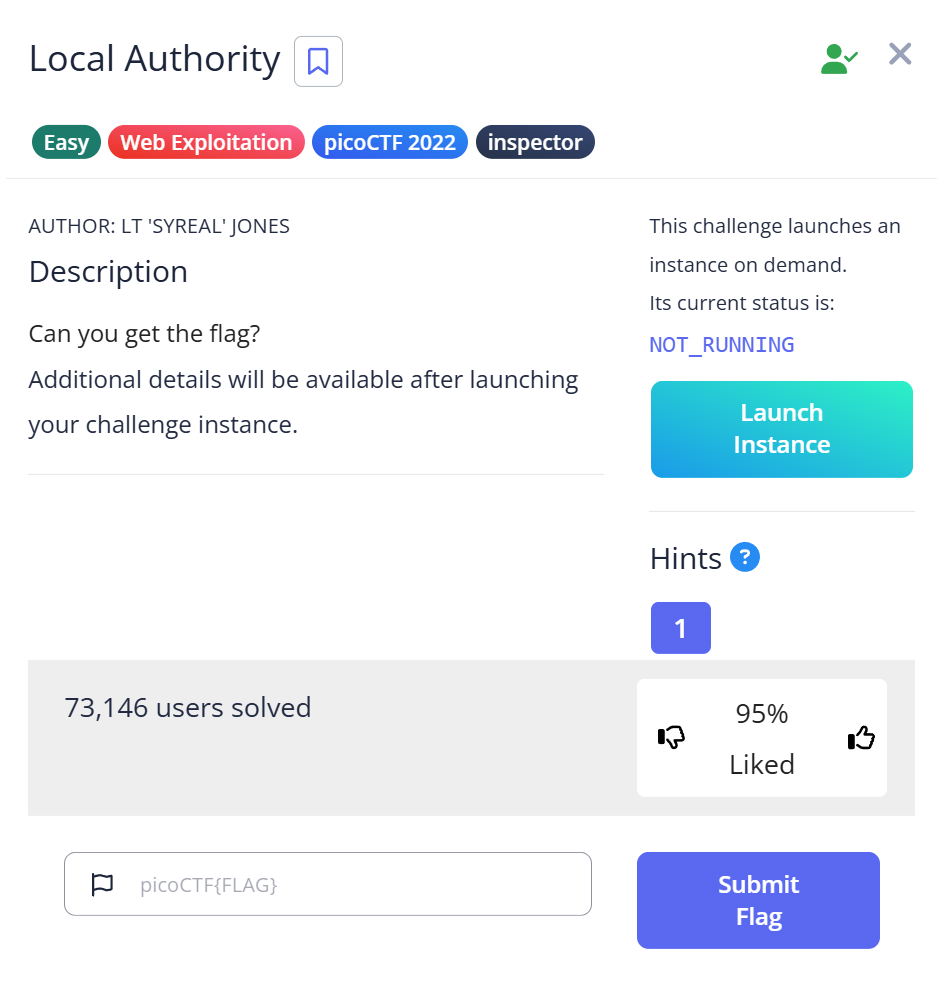
CyLab Security Academy (formerly picoCTF) Local Authority is a Web Exploitation Easy challenge built around one of the most common real-world mistakes developers make: putting authentication logic in client-side JavaScript. The password is in the code the server sends you. You just have to know where to look.
Article Overview
This is a writeup for Local Authority, a Web Exploitation Easy challenge on CyLab Security Academy (formerly picoCTF). The challenge gives you a login form on a web page. The correct credentials are hardcoded in a JavaScript file that the server serves to your browser — visible in Burp Suite’s HTTP history or directly in DevTools Sources.
In this article you’ll learn how to find and read JavaScript files loaded by a page, recognize a client-side authentication check, and understand why this pattern is a security vulnerability in real applications.
Introduction
Login form. My first move was the same one I always make: try admin / admin, see what happens. The page returned a failure message and I started reaching for Burp Suite to intercept the request and look at the server’s response.
What I didn’t expect was to find the password in JavaScript code served alongside the page — not in the server’s login response, but in a separate script file loaded before I even typed anything. The login check was running entirely in the browser. The server was never validating credentials at all.
That’s the vulnerability this challenge demonstrates: client-side authentication. When you move the credential check into JavaScript, every user’s browser downloads the correct username and password as part of loading the page. There’s nothing to intercept in the traditional sense — the credentials are handed to you before you ask for them.
Challenge Overview
Launch the instance and you get a login page. Username and password fields, a submit button. No registration link, no “forgot password.” The challenge name — Local Authority — hints that something is happening locally (in the browser) rather than on the server.
I tried the obvious first: admin / password, admin / admin, test / 1234. All failed with a generic error message. No useful information in the response to indicate whether I had the username right.
Step 1 — Intercepting Traffic with Burp Suite
I opened Burp Suite, set the browser proxy, and submitted the login form with test credentials to watch the traffic. The POST request went out, the server responded — but the response didn’t contain anything useful about what the correct credentials should be.
Then I looked at the full HTTP history, not just the login POST. The page load had triggered several GET requests — the HTML, some CSS, and a JavaScript file. That JS file was the interesting one.
In Burp’s HTTP History, I clicked through to the JavaScript file response. Inside:
function checkPassword(username, password)
{
  if( username === 'admin' && password === 'strongPassword098765' )
  {
    return true;
  }
  else
  {
    return false;
  }
}
There it is. The function that validates the login form is running in the browser, and it contains the hardcoded credentials in plaintext. Username: admin. Password: strongPassword098765.
You don’t even need Burp Suite for this — DevTools works just as well. F12 → Sources tab → find the JavaScript file → read it. Or Ctrl+U to view page source, follow the script tag to the JS file URL, open it directly in the browser.
Step 2 — Logging In with the Extracted Credentials
Back to the login form. Entered admin as the username and strongPassword098765 as the password. Submitted.
The page accepted them and returned the flag.
Capture the Flag
Flag: picoCTF{j5_15_7r4n5p4r3n7_05df90c8}
Read the flag: j5_15_7r4n5p4r3n7 — “JS is transparent.” JavaScript is transparent: the browser downloads and executes it, and anyone can read it. The flag is commentary on the vulnerability itself. If your authentication logic is in JavaScript, it’s transparent to every user who loads the page.
Full Trial Process Table
| Step | Action | Tool | Result | Why it failed / succeeded |
|---|---|---|---|---|
| 1 | Try common credentials manually | Browser | Generic failure | Credentials don’t match the hardcoded values |
| 2 | Capture login POST in Burp | Burp Suite Proxy | Server response gives no credential hints | Server never validates — check is client-side only |
| 3 | Review full HTTP history including page load | Burp HTTP History | Found external JS file in GET requests | Authentication logic is in a separate script loaded at page load |
| 4 | Read JS file response body | Burp HTTP History / DevTools Sources | Found checkPassword with hardcoded credentials | Client-side auth stores credentials in plaintext JavaScript |
| 5 | Log in with extracted credentials | Browser login form | Flag displayed | Credentials matched the hardcoded values |
Short Explanations for Commands and Techniques Used
Client-Side Authentication
Proper authentication happens on the server: the client sends credentials, the server checks them against a database, and the server decides whether to grant access. The client never sees the correct credentials — only a success or failure response.
Client-side authentication reverses this: the JavaScript the server sends to the browser contains the check logic, including the correct credentials. Every user who loads the page receives the username and password. This is not a subtle vulnerability — it’s a fundamental architecture mistake. It appears in real applications more often than you’d expect, typically in simple internal tools or prototypes that were never meant to be production code but ended up deployed anyway.
Finding External JavaScript Files
HTML pages load resources — CSS, images, JavaScript — through tags like <script src="...">. Each of these generates a separate HTTP request. In Burp Suite’s HTTP History, all requests made during a page load appear in order. The JS files are often the most interesting: they contain application logic, API keys, hardcoded values, and sometimes credentials.
In DevTools: F12 → Sources tab. The left panel shows all files loaded by the page, organized by domain. Click any JavaScript file to read it. For a quick check from the command line:
# Find all script tags in the page source
curl -s http://[challenge-host] | grep -o 'src="[^"]*\.js[^"]*"'

# Fetch and read the JS file directly
curl -s http://[challenge-host]/[path-to-script].js
Burp Suite HTTP History
Burp Suite’s Proxy → HTTP History tab shows every request and response that passed through the proxy. This includes the initial page load, all static assets (JS, CSS, images), and any subsequent API calls. For web CTF challenges, scrolling through the full history of a page load often reveals files worth reading — not just the login endpoint response. See the official Burp documentation for navigation details.
Beginner Tips
- Don’t just look at the login response. The interesting file might be a JavaScript resource loaded before you even submit anything. Check the full HTTP history, not just the most recent request.
- DevTools Sources tab is your friend. F12 → Sources shows every file the page loaded. If you see a
.jsfile with an unfamiliar name, click it. Authentication logic, API keys, and hardcoded values end up in JS files regularly. - Search JavaScript for credential patterns. In DevTools Sources, Ctrl+F within a JS file. Search for
password,username,admin, or===— equality checks in JavaScript authentication functions are a reliable tell. - The challenge name is a hint. “Local Authority” = the authority is local, i.e., in the browser. Challenge names in picoCTF typically describe the technique. Train yourself to read them as clues before starting.
What You Learn
This challenge teaches the difference between where code runs and where trust decisions should be made. JavaScript runs in the browser — on the user’s machine, under the user’s control. Any logic placed in JavaScript is readable and modifiable by the user. Credentials, access control rules, and license checks placed in client-side code provide no real protection.
The flag says it directly: “JS is transparent.” In a real penetration test, finding hardcoded credentials in a JavaScript bundle is a critical finding. Tools like TruffleHog automate scanning JavaScript files for secrets — the same pattern this challenge demonstrates manually.
If I hit this type of challenge again, I’d go straight to DevTools Sources and look at every JS file before spending time on Burp. The credential is served to the browser on page load — no interception needed, no brute force needed, just reading what the server handed you.
Further Reading
This challenge is part of the Web Exploitation series on CyLab Security Academy (formerly picoCTF). For a similar challenge where credentials are hidden in HTML source rather than JavaScript — and where the approach is even simpler — see the Inspect HTML picoCTF Writeup.
For a challenge where a developer left a bypass hint in an HTML comment encoded in ROT13, see the Crack the Gate 1 picoCTF Writeup — the same “look at the source before doing anything else” principle, one layer deeper.
Leave a Reply