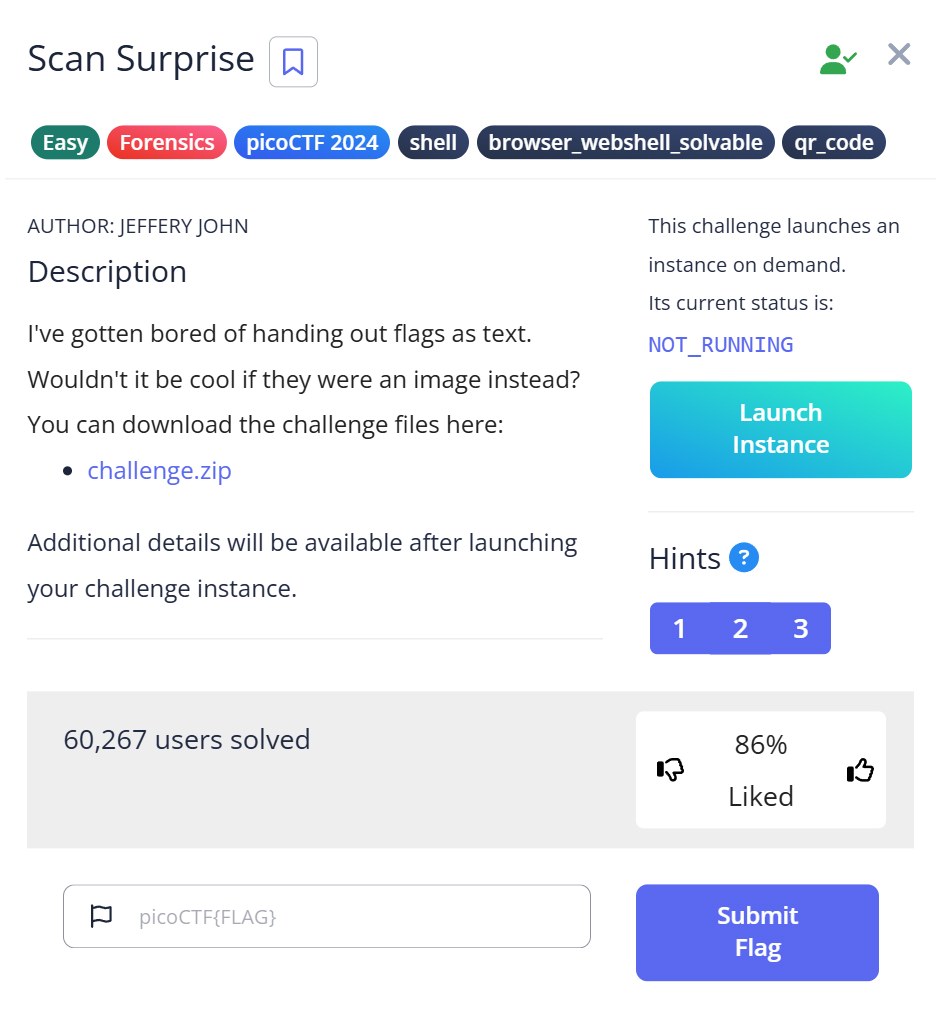
I was about 30 minutes into a weekend picoCTF practice session when I saw it: a ZIP file, and inside, a single PNG that opened as a QR code. My instinct was to write a Python script. I’d been programming long enough to know that pyzbar existed, that opencv could load images, and that reaching for a command-line tool I’d never heard of felt risky compared to code I could control. That instinct cost me 25 minutes on a challenge that a single terminal command would have solved in seconds.
This is my writeup for picoCTF Scan Surprise, a General Skills challenge. The problem is straightforward — extract a flag from a QR code image — but the lesson it left behind has changed how I approach every forensics problem since: before you write code, ask whether the code is already written for you.
The Challenge Setup
picoCTF Scan Surprise drops you into a General Skills category, which usually means the path to the flag is more about awareness than deep technical wizardry. The challenge provides a ZIP archive. Inside, after extracting, is a single file: flag.png.
$ unzip challenge.zip
Archive:  challenge.zip
  inflating: flag.png

$ file flag.png
flag.png: PNG image data, 304 x 304, 8-bit/color RGB, non-interlaced
Opening flag.png shows a clean black-and-white QR code. No steganography, no corrupted header, no hidden layers. Just a QR code. At this point I had two options: scan it with a phone, or find a terminal-based solution. CTF best practice rules out the phone — you need a reproducible command that another person can run and verify. So I reached for Python.
The Python Rabbit Hole (25 Wasted Minutes)
My first move was pyzbar, a Python QR/barcode decoding library I’d read about before. Installation seemed fine:
$ pip install pyzbar pillow
Collecting pyzbar
  Downloading pyzbar-0.1.10-py3-none-any.whl (13 kB)
Collecting pillow
  ...
Successfully installed pillow-10.2.0 pyzbar-0.1.10
Then I wrote the script:
from pyzbar.pyzbar import decode
from PIL import Image

img = Image.open("flag.png")
result = decode(img)
print(result)
Running it:
ImportError: Unable to find zbar shared library
pyzbar is a Python wrapper — it doesn’t include the underlying C library. I needed to install the native dependency separately, which is easy enough on Debian-based systems but not something I knew off the top of my head mid-challenge:
$ sudo apt install libzbar0
Reading package lists... Done
...
Setting up libzbar0:amd64 (0.23.1-1) ...
The script ran this time. Output:
[Decoded(data=b'picoCTF{p33k_@_b00_3f7cf1ae}', type='QRCODE', rect=Rect(left=29, top=29, width=246, height=246), polygon=[...])]
Flag extracted. But I’d just spent nearly 20 minutes on dependency errors, documentation tabs, and trial-and-error — all to solve something that zbarimg, a tool I didn’t know existed yet, could have done in one line from the terminal.
I only found out about zbarimg because someone on a CTF Discord mentioned it while I was explaining my Python ordeal. “Why didn’t you just use zbarimg?” they asked. I had no answer.
The Actual Solution: zbarimg
zbarimg is part of the zbar-tools package — the same underlying library that pyzbar wraps. But unlike the Python wrapper, it’s a self-contained command-line program. Install once, run directly:
$ sudo apt install zbar-tools
$ zbarimg flag.png
QR-Code:picoCTF{p33k_@_b00_3f7cf1ae}
scanned 1 barcode symbols from 1 images in 0 seconds
One command. Less than one second. No script, no dependency errors, no library version conflicts. The flag: picoCTF{p33k_@_b00_3f7cf1ae}.
Breaking Down the Flag
The flag content p33k_@_b00 is leet-speak for “peek-a-boo” — a direct reference to the challenge name “Scan Surprise.” Something is hiding in plain sight, and you need the right tool to peek at it. It’s a small detail, but picoCTF challenge designers are deliberate about naming. When the challenge name and the flag content mirror each other like this, it usually signals that the problem is testing awareness rather than technique.
All Attempts at a Glance
| Step | Action | Result | Why It Failed / Succeeded |
|---|---|---|---|
| 1 | pip install pyzbar pillow | Installed OK | Wrapper only — no native lib |
| 2 | Run Python decode script | ImportError: Unable to find zbar shared library | libzbar0 not installed |
| 3 | sudo apt install libzbar0 | Installed OK | — |
| 4 | Re-run Python script | Flag decoded successfully | Works, but ~20 min spent |
| 5 | sudo apt install zbar-tools && zbarimg flag.png | Flag decoded in <1 second | Purpose-built CLI — fastest path |
Why QR Codes Appear in CTF Forensics
QR codes encode data in a 2D matrix pattern using ISO 18004 standards. The format supports multiple encoding modes (numeric, alphanumeric, binary, kanji) and includes error correction at four levels (L/M/Q/H) — allowing up to 30% of the code to be corrupted and still decoded correctly.
In CTF challenges, QR codes are interesting because they look like noise to the untrained eye but carry machine-readable data. Challenge designers use them to hide flags in images, video frames, or even audio spectrograms. In real-world security contexts, QR codes have been weaponized for:
- Phishing: QR codes in emails or posters pointing to malicious URLs that bypass link scanners
- Payload delivery: Encoding shellcode or malware download links
- Data exfiltration: Encoding sensitive strings in innocuous-looking images
The skill of decoding QR codes from the command line — and recognizing when a QR code has been tampered with (inverted, resized, embedded in a larger image) — is genuinely transferable beyond CTF.
Harder Variants You’ll Encounter
Scan Surprise uses a clean, standard QR code. But picoCTF and other CTFs introduce complications in harder variants. Here’s what to watch for:
Inverted Colors
ISO 18004 requires dark modules on a light background. An inverted QR code — white on black — causes zbarimg to return “0 barcodes detected” with no explanation. Fix with ImageMagick:
$ zbarimg inverted_flag.png
scanned 0 barcode symbols from 1 images in 0 seconds

$ convert inverted_flag.png -negate fixed.png
$ zbarimg fixed.png
QR-Code:picoCTF{example_flag}
Low Resolution
QR codes smaller than ~100×100 pixels fail reliably. The modules are too small for the scanner to distinguish. Use nearest-neighbor upscaling (not bicubic, which blurs edges):
$ identify tiny_flag.png
tiny_flag.png PNG 60x60 ...

$ convert tiny_flag.png -resize 400% -filter point upscaled.png
$ zbarimg upscaled.png
QR-Code:picoCTF{example_flag}
QR Code Inside a Video Frame
Some challenges embed QR codes in video files. Extract frames with FFmpeg first:
$ ffmpeg -i challenge.mp4 -vf fps=1 frame_%04d.png
$ zbarimg frame_*.png
Combined Fixes
When you’re not sure what’s wrong, apply negation and upscaling together:
$ convert flag.png -negate -resize 400% -filter point fixed.png && zbarimg fixed.png
What This Challenge Is Actually Testing
Scan Surprise sits in the General Skills category for a reason. It’s not testing your ability to write QR decoders. It’s testing whether you know that QR decoders already exist as command-line tools, and whether you reach for them before reaching for Python.
This sounds obvious in hindsight, but in a timed competition environment, the reflex to “just script it” is strong — especially if you’re a programmer. The challenge is designed to reward the mindset of: what tool handles this format natively?
picoCTF’s General Skills category is full of this kind of problem. The format changes — sometimes it’s a QR code, sometimes it’s a binary you need strings on, sometimes it’s an archive with an unusual extension — but the underlying skill is always the same: know your toolbox before competition, so during competition you reach for the right tool in seconds instead of minutes.
I’ve since made a habit of asking “does a CLI tool exist for this format?” before opening any editor. For QR codes: zbarimg. For audio: sox, audacity. For PDFs: pdfdumper. For binaries: binwalk, strings. For disk images: fdisk, dd. Ten seconds of searching saves twenty minutes of debugging.
Quick Decision Guide: When You See a QR Code in CTF
If you’re mid-competition and you get a QR code image, this is the order of operations:
| Situation | First Command |
|---|---|
| Any QR/barcode PNG | zbarimg flag.png |
| Got “0 barcodes detected” | convert flag.png -negate neg.png && zbarimg neg.png |
| Image looks tiny (under 100px) | convert flag.png -resize 400% -filter point up.png && zbarimg up.png |
| QR code is inside a bigger image | convert flag.png -crop 200×200+X+Y crop.png && zbarimg crop.png |
| QR code is in a video file | ffmpeg -i challenge.mp4 -vf fps=1 frame_%04d.png && zbarimg frame_*.png |
| All of the above fail | Fall back to Python pyzbar for programmatic control |
Next Time I’d Do This Differently
If I saw this challenge again, my first terminal command would be:
$ zbarimg flag.png
No Python, no scripts. If zbarimg returned 0 results, I’d then look at the image visually — is it inverted? Low resolution? Cropped oddly? — and apply fixes before reaching for a scripting solution. The Python route is always available as a fallback, but it should be the fallback, not the first attempt.
Further Reading
If Scan Surprise is your introduction to QR decoding in CTF, the natural next step is to go deeper on the tool itself. My full breakdown of zbarimg in CTF — including all common failure modes and how to diagnose silent failures covers everything I’ve learned from using it across multiple challenges.
For a broader picture of forensics tooling, CTF Forensics Tools: The Ultimate Guide for Beginners maps out the full toolkit — from file analysis with binwalk to image inspection with pngcheck — with guidance on which tool fits which scenario.
Scan Surprise is part of picoCTF’s General Skills category. Other challenges in that series worth working through include problems that build on tool awareness in different formats — stego, binary, and disk image challenges all test a similar mindset.